

Allow a staff user to see a report
Share a custom report with a staff user by giving them read-only access so the saved report appears on their Dashboard in CampiumDB.
Overview
Share a saved custom report with a staff user by granting them read-only access so they can view it from their own Dashboard. Use this when a staff member needs insight from a specific report but does not need full access to CampiumDB.
Staff users you select for read-only access can log in, open the report from their Dashboard, and review the data without changing anything.
Give a staff user read-only access when saving a report
Use these steps when you save a custom report that you want a staff user to see.
Save the report and choose staff with access
-
From Reports → Custom Reports, open or build the report you want to share.
-
Click Save (or Save Report) to open the save options for the custom report.
-
In the save options, select the staff users who should receive read-only access to this report.
-
Confirm your selections and save the report.
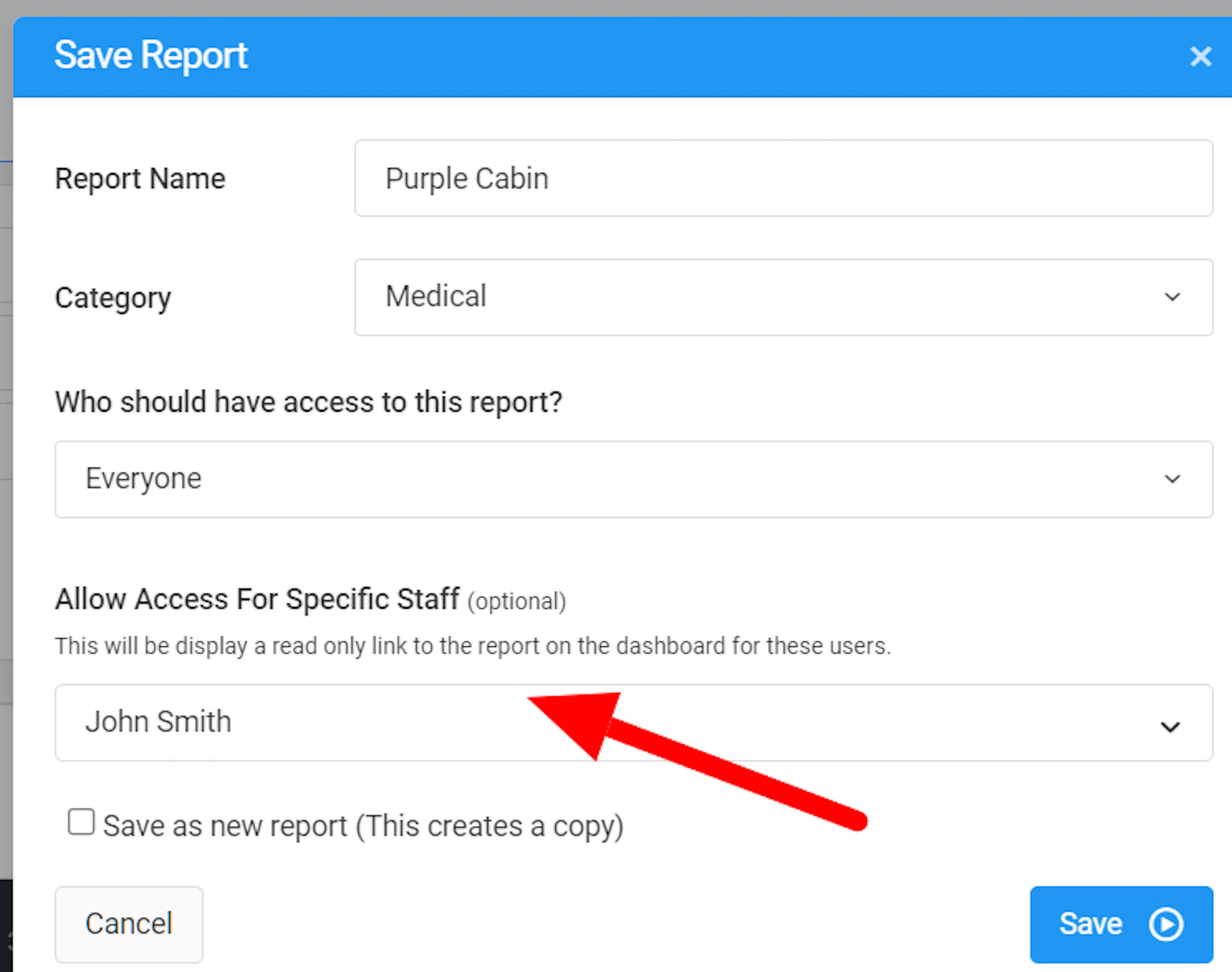
After you save, CampiumDB grants the selected staff users read-only access to that specific report.
What the staff user sees
Selected staff users can log in to CampiumDB and see the name of the shared report directly on their Dashboard.
When they click the report name:
-
CampiumDB opens a read-only view of the saved custom report.
-
The staff user can review the report results but cannot modify filters, fields, or any other settings.
This gives staff a focused way to view the data they need without navigating the rest of the system.
Permissions and limitations
Staff who receive read-only access to a report:
-
Can log in and open that specific report from their Dashboard.
-
Cannot make any changes to the report itself.
-
Cannot see or access anything else in CampiumDB beyond that shared report.
These limitations keep sensitive configuration and other data hidden while still letting staff view the report output you chose to share.
Notes
-
Use read-only access for staff who do not typically work in CampiumDB but need to review a particular report.
-
You control access when you save the report by selecting which staff should see it.
-
Staff access is scoped to the specific report; it does not grant broader reporting or admin permissions.
-
If a staff user no longer needs access, create and save a new version of the report without selecting them.
Source
Original help content: Allow a staff user to see a report (Campium help article).