

Average Family Expected Revenue report
Track average expected revenue per family and per camper over seasons, filter by registration date, and drill into families from the Average Family Expected Revenue report.
What the report shows
Average Family Expected Revenue Over Time estimates how much revenue you expect from each family and each camper in a season, then tracks how those averages change over time and across seasons.
Use this report when you want to:
-
Compare how much families and campers are expected to spend from one season to the next.
-
Spot seasons where average spend is trending up or down.
-
Drill into which families drive a season's expected revenue.
-
Limit the view to registrations created in a date window.
The report calculates expected revenue based on your product setup and applied discounts/credits. It does not show collected or deposited revenue; use financial reports such as Revenue Summary or Deposit Summary for actual payments.
How expected revenue is calculated
Expected revenue in this report uses the same definition shown in the Campium UI.
Expected revenue is calculated as the sum of the product prices minus discounts and credits.
For each season:
-
Campium adds up the prices of all products on a family's account.
-
Campium subtracts any discounts and credits applied to those products.
-
The result is the family's expected revenue for that season.
Average expected revenue for a season is:
-
Avg per Family = total expected revenue for that season ÷ unique families with a balance in that season.
-
Avg per Camper = total expected revenue for that season ÷ unique campers included in that season.
These match the averages shown on the chart and in the season breakdown table.
Permissions and access
You need the finance module permission to view this report.
If you do not see Average Family Expected Revenue Over Time in the Reports area, an administrator must enable the finance module permission for your staff account. See Allow a staff user to see a report.
The report appears in your Reports area as Average Family Expected Revenue Over Time.
Run the report
Use these steps to open and run the report from Campium.
Open the System Reports area
-
Sign in to the admin side of Campium.
-
Go to your Reports section.
-
Open the System or System Reports group, depending on your navigation.
You should now see a list of built-in system reports.
Open Average Family Expected Revenue Over Time
-
In the System Reports list under Charts, look for Average Family Expected Revenue Over Time.
-
Select the report name to open it.
The report page loads with all seasons selected and the charts ready to populate.
Apply filters and load data
-
Use the Season multi-select filter at the top.
-
Keep the default of all seasons selected or pick specific seasons you want to analyze.
-
Optionally set a date range in the page header to count only registrations created in that window.
-
Optionally set Minimum Family Spend to leave low-spend families out of the averages.
When the data loads successfully, you see:
-
Summary cards, including unique family and camper counts.
-
A line chart for averages per family and per camper.
-
A season breakdown table.
If you arrive at the report from a dashboard or a shortcut, Campium may pre-select a season or context for you. You can still change the Season filter and date range to broaden or narrow the results.
Filters
The Average Family Expected Revenue report has three filters: Season, date range, and Minimum Family Spend.
Season filter
The Season filter controls which seasons appear in the charts and season breakdown.
-
The filter is a multi-select list of seasons.
-
All seasons are selected by default when you load the page.
-
Clearing or deselecting all seasons results in an empty chart and table.
When you change the Season filter and run the report, Campium recalculates the averages for the seasons you selected.
Date range
Use the date range picker in the page header to limit the report to registrations created in a window.
- When a range is set, the page title includes the dates (for example Average Family Expected Revenue Over Time · Sep 1, 2026 - Sep 15, 2026).
- Only registrations created in that window are counted. Matching discounts and credits created in the same window are included.
- Leave the picker on All dates to include every registration for the selected seasons.
The report description on the page states: A date range counts only registrations (and discounts or credits) created in that window. Leave it on All dates to include everything.
Minimum Family Spend
Use Minimum Family Spend to leave low-spending families out of the averages, so a large number of near-zero balances does not pull the average down.
-
Enter a dollar amount. Only families whose expected revenue is at or above that amount are counted in the averages, summary cards, and breakdown table.
-
Leave it blank (or
0) to include every family with a balance. -
Changing this value re-runs the calculation on the server along with your selected seasons.
What you see on the page
After you run the report with at least one season selected, the page shows a combination of charts, summary cards, and a detailed table.
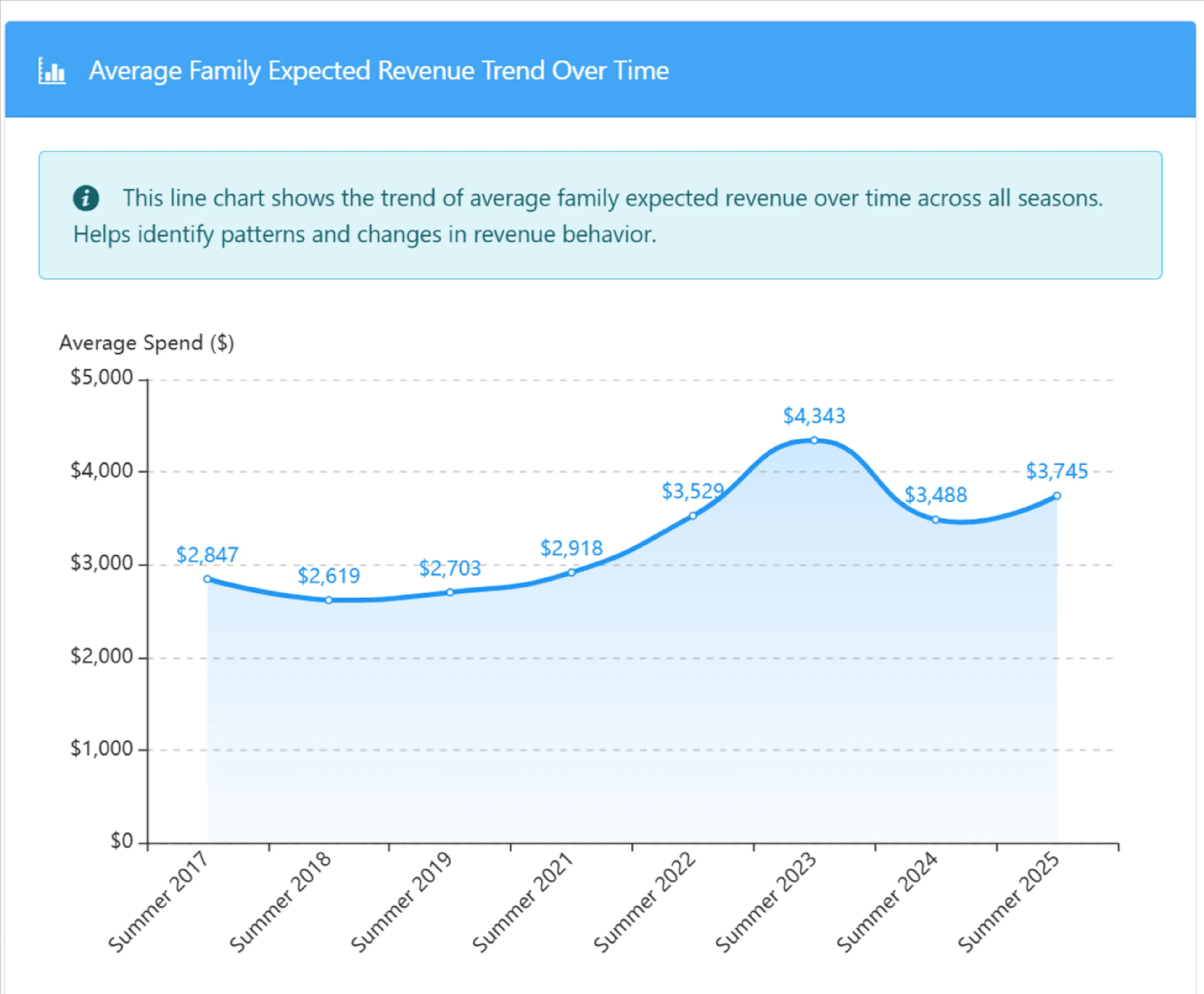
Average Expected Revenue per Family and per Camper (line chart)
The line chart at the top is labeled Average Expected Revenue per Family and per Camper.
Its caption reads: This line chart shows average expected revenue per family and per camper across the seasons you selected.
This chart shows:
-
Average expected revenue on the vertical axis.
-
Seasons on the horizontal axis.
-
Two series: Avg per Family and Avg per Camper.
You can use this view to:
-
See whether average spend per family or per camper is going up or down across seasons.
-
Spot sharp increases or drops that might align with pricing changes, new programs, or discount policies.
The points on the line chart are clickable and correspond to individual seasons.
Summary cards
Above or near the charts, you see summary cards that highlight key metrics:
-
Current Average: The average family expected revenue for the most recent season in your selection.
-
Highest Average: The season with the highest average expected revenue per family.
-
Lowest Average: The season with the lowest average expected revenue per family.
-
Trend: The change in the most recent season compared to the prior season (for example, up or down as a percentage or amount).
-
Unique Families: How many distinct families are included across the seasons you selected.
-
Unique Campers: How many distinct campers are included across those seasons.
Use these cards as a quick readout before digging into the detailed table:
-
If the Trend card shows a negative change, look for reasons families might be spending less (pricing, fewer sessions, more discounts).
-
If the Highest Average is a past season, compare what was different about that season's offerings or pricing.
-
Compare Unique Families and Unique Campers to see whether average-per-camper changes track enrollment mix.
Trend compares the newest season in your filter to the prior season in the same filtered set. If you limit the Season filter to a small set of seasons, you may see a different trend than when all seasons are selected.
Season breakdown table
Below the charts, the season breakdown table lists each season with its key metrics.
The table includes these columns:
-
Season
The name of the season. The Season cell is clickable and opens the family-level drill-down for that season. -
Avg per Family
The average expected revenue per family for that season. The cell also shows a percentage change vs the prior season so you can quickly see whether family spend increased or decreased. -
Avg per Camper
The average expected revenue per camper for that season. -
Unique Families
How many distinct families are included in the averages for that season. -
Unique Campers
How many distinct campers are included for that season. -
Total Expected Revenue
The total expected revenue for that season across all included families. This is the sum of each family's expected revenue (product prices minus discounts and credits).
A footer Total row sums the unique counts and total expected revenue across the seasons shown.
For a given season, you can interpret the numbers as:
-
Total Expected Revenue ÷ Unique Families = Avg per Family.
-
Total Expected Revenue ÷ Unique Campers = Avg per Camper.
-
The percentage change compares this season's family average against the previous season's family average.
The season breakdown table always reflects the seasons currently selected in the Season filter. If you deselect older seasons, the "prior season" used for percentage comparisons may change.
Drill down to families
Clicking into a season opens a modal that shows which families contribute to that season's expected revenue.
Open the families modal
Choose a season
-
In the season breakdown table, locate the season you want to inspect.
-
Select the Season name link for that row.
Campium opens a modal window with a list of families for the chosen season.
Review families and their expected revenue
Inside the modal, you see a count line for how many families are listed, then a table with:
-
Family Name: The primary family name. The name is a link that opens the family profile in a new tab.
-
Expected Revenue: The expected revenue for that family in the selected season (product prices minus discounts and credits).
-
Number of Participants: How many participants from that family are registered for that season.
A footer shows totals for expected revenue and participant count across the families in the modal.
Use this view to understand which families drive high or low averages and to investigate specific accounts.
Use the Family Name link to open the profile in a new browser tab, so you can review charges, discounts, and payment history without losing your place in the report.
Interpreting and using the data
Average Family Expected Revenue helps you answer planning and pricing questions:
-
Pricing impact: If average expected revenue per family jumps after a pricing change, confirm that the increase aligns with your goals and enrollment levels.
-
Discount strategy: A drop in average expected revenue might reflect more aggressive discounts or scholarships. Compare changes in Total Expected Revenue and Unique Families to see whether the drop is due to pricing or enrollment.
-
Enrollment mix: If Unique Families grows but Avg per Family stays flat, you may be adding families with lower spend (shorter sessions, fewer add-ons). Use Avg per Camper alongside Unique Campers for the same check at the camper level.
Remember that this report looks at expected revenue, not actual payments collected. Use it alongside payment-focused reports when making financial decisions.
Troubleshooting empty or missing data
If the charts or table are empty, or you see less data than expected, check these common causes.
-
Confirm that you have at least one season selected in the Season filter.
-
If you recently created new seasons, verify that they have enrollments or products that generate expected revenue.
-
Try expanding the Season filter to include more seasons and run the report again.