

System Reports Charts
Understand registration patterns and year-over-year trends using the chart-based system reports, and turn those insights into concrete actions.
What the chart reports are for
Several chart-based system reports turn your registration data into clear visuals so you can see when families register, how each season compares, and whether you are ahead or behind last year.
The main chart reports include Registration Patterns, Weeks Sold (also called Year Over Year), Product YoY Comparison, and Season Recap. Each is a separate system report you open on its own. There is no single combined Charts screen. Related reports share a button row so you can jump between them (for example Stats Dashboard, Season Recap, and Registration Patterns Report).
Use these views to plan marketing, adjust staffing, and make day-to-day decisions with confidence.
These reports show trends over time, not individual families. Use them when you want the big picture, not a detailed roster.
Where to find the chart reports
Use this section when you need to open one of these reports.
Open System Reports
-
From your admin area, look for a Reports or System Reports option.
-
Select System Reports.
Open the report you need
-
In the System Reports list, find the individual report you want, such as Registration Patterns, Weeks Sold (also called Year Over Year), Product YoY Comparison, or Season Recap (under Enrollment).
-
Select it to open that report. Each opens on its own page; there is no single combined Charts screen.
-
Once it is open, use any dropdowns to pick the season or comparison you want to view. Use the chart reports button row to open a related report without returning to the list.
For a short season summary you can email to administrators, see Season Recap.
Registration Patterns report
The Registration Patterns chart helps you understand when families register so you can time your communication and staffing.
What you see on Registration Patterns
When you open the Registration Patterns view, look for:
-
Total Registrations: The number of active registrations in the season you selected.
-
Most Popular Day: The weekday with the highest number of registrations.
-
Most Popular Hour: The time of day when registrations tend to spike.
-
Average Per Day: The average number of registrations per day over the season.
Below the summary, you typically see:
-
Registration by Day of Week bar chart
Shows how many registrations you receive on each weekday (for example, Monday vs. Tuesday). -
Registration by Time of Day line chart
Shows how registrations are spread across the hours in a day. -
Day of Week breakdown table
Lists each day (Monday–Sunday) with the exact counts and percentages. -
Time of Day breakdown table
Breaks registrations into time ranges (for example, morning, afternoon, evening) so you can see the busiest times.
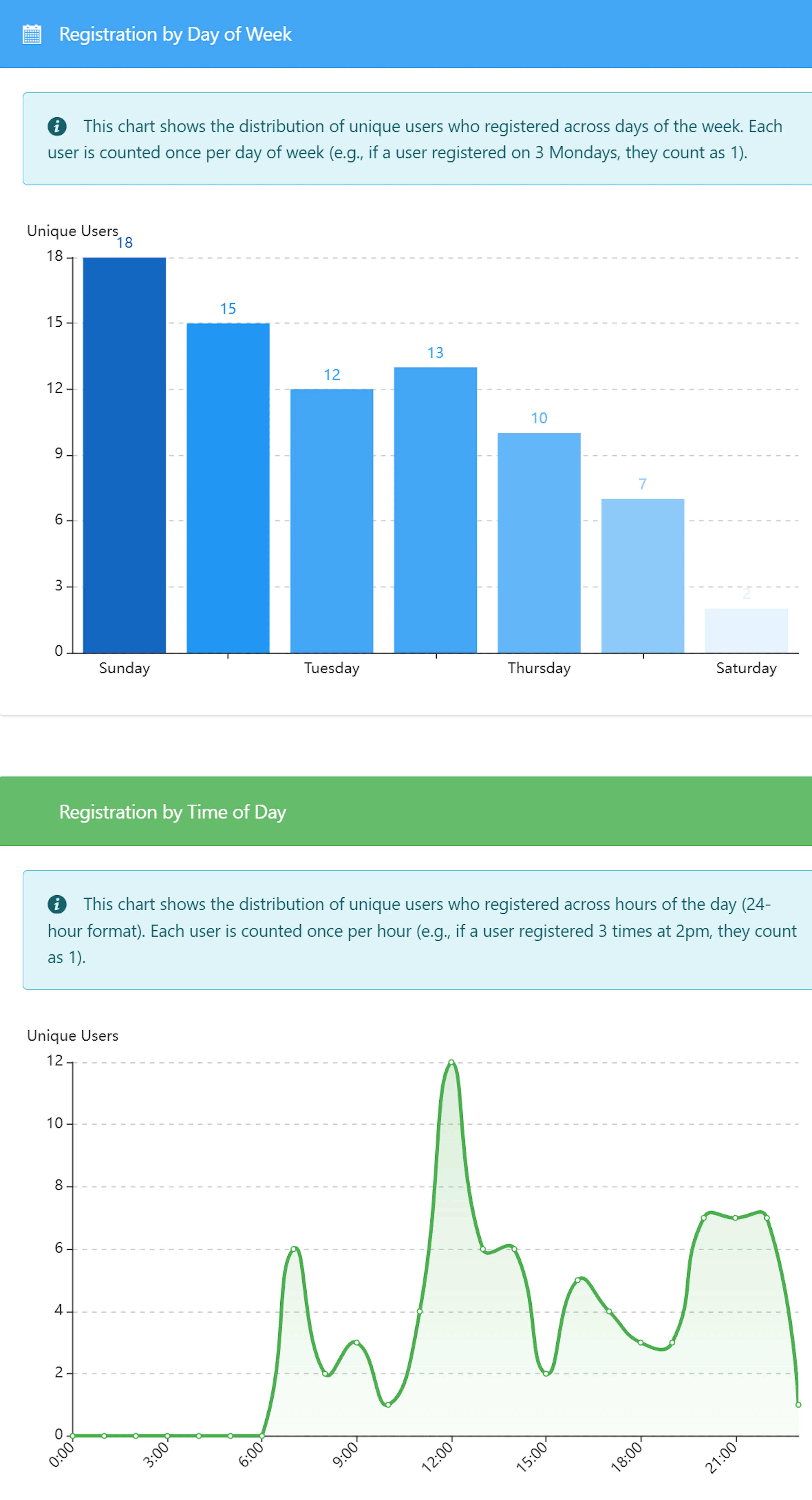
If available, change the season at the top of the chart to compare how registration timing shifts from one year to another.
How to use Registration Patterns
Use these ideas to turn the Registration Patterns chart into actions.
Choosing a season
-
Select the season you want to review, such as your current summer or last summer.
-
If the option exists, switch between seasons to see how patterns change year to year.
Success check: After changing the season, the totals and charts should update to match that season.
Interpreting day‑of‑week patterns
-
Look for Most Popular Day and the tallest bar in the Registration by Day of Week chart.
-
Notice any very slow days that consistently have fewer registrations.
Actions to take:
-
Plan email or SMS campaigns to land one day before your busiest day so families are ready to register.
-
Schedule extra support staff (phone, email, chat) on the most popular day so families get quick help.
-
Use slow days to follow up with families who started but have not finished registering.
Interpreting time‑of‑day patterns
-
Check Most Popular Hour and the highest points on the Registration by Time of Day chart.
-
See whether registrations cluster in the morning, midday, or evening.
Actions to take:
-
Schedule reminder messages (email, SMS, push notifications) to arrive 1–2 hours before your busiest time.
-
Adjust office hours so someone is available to respond during your peak registration hours.
-
Avoid maintenance or system changes during peak times, if you control those schedules.
Weeks Sold (Year Over Year) report
The Weeks Sold report, also called Year Over Year, focuses on weeks sold, so you can compare how two seasons are performing.
What weeks sold means
Weeks sold is a simple way to count how much camp time families have booked:
-
If a camper signs up for one week of camp, that counts as 1 week sold.
-
If a camper signs up for eight weeks of camp across the summer, that counts as 8 weeks sold.
-
Your total weeks sold is the sum of all weeks from all registrations in a season.
This helps you see not just how many registrations you have, but how much camp time you have actually filled.
Selecting seasons to compare
In the Year Over Year view:
-
Select two seasons to compare, such as this summer and last summer.
-
Seasons typically run from August through July, so August is the start of the comparison period.
Success check: After you pick two seasons, the numbers and charts should show both seasons side by side.
What you see on Year Over Year
Look for summary cards and charts that highlight:
-
Total weeks sold for each season
How many camp weeks you sold in each of the two seasons. -
Total registrations for each season
How many individual registrations were created. -
Average weeks per registration
On average, how many weeks each registration includes. -
Percent change between seasons
How much weeks sold, registrations, and averages have increased or decreased between the two seasons.
Below the summaries, you typically see:
-
Monthly comparison chart (Aug–Jul)
Bars for each month from August through July, showing weeks sold per month for each season. -
Cumulative weeks sold timeline
A running total of weeks sold over the full year (up to 52 weeks), with one line per season. -
Cumulative registrations timeline
A running total of registrations over time, again with separate lines for each season. -
Top products by weeks sold
A list or chart of your top camp offerings by weeks sold (often the top 10), so you can see which options are filling fastest.
How to use Year Over Year
Use the Year Over Year chart to understand performance and momentum.
Check overall performance
-
Compare total weeks sold between your two seasons.
-
Look at the percent change to see whether you are selling more or fewer weeks this year.
If your current season shows higher weeks sold and positive percent change, you are outpacing last year.
If the percent change is negative, you are behind last year and may need to intervene.
Find peak months
-
Look at the monthly comparison chart from August to July.
-
Identify the peak months when weeks sold are highest for each season.
-
Notice any months where the current season is stronger or weaker than last year.
Actions to take:
-
Plan early‑bird discounts or special campaigns ahead of your historical peak months.
-
If a usually strong month is weaker this year, send extra reminders or highlight popular programs.
Monitor the pace over time
-
Use the cumulative weeks sold timeline to see how quickly weeks are selling this year vs. last year.
-
Use the cumulative registrations timeline to check whether the number of families is growing, even if weeks per family changes.
Actions to take:
-
If the current line stays above last year, maintain your marketing plan and be ready to add capacity or waitlists.
-
If the current line drops below last year, consider:
-
Sending targeted reminders to past families.
-
Highlighting limited availability to encourage earlier registration.
-
Reviewing pricing or program descriptions that might be slowing interest.
-
Evaluate products and programs
-
Review the top products by weeks sold list or chart.
-
Note which camps or sessions appear in the top 10 and which have dropped.
Actions to take:
-
For top performers, consider:
-
Adding more spots or additional sessions.
-
Featuring them in your marketing as examples of popular choices.
-
-
For lower‑performing offerings, consider:
-
Updating descriptions, photos, or age ranges.
-
Adjusting schedules or pricing.
-
Pairing them in promotions with more popular programs.
-
Product YoY Comparison report
The Product YoY Comparison report is a separate report that compares how your individual products or sessions performed between two seasons.
Use it to see which offerings grew, held steady, or declined year over year, so you can decide where to add capacity, adjust pricing, or focus your marketing.
Dashboard season comparison widget
The dashboard season comparison widget gives a quick snapshot of whether your current season is ahead or behind last year at the same point in time.
Where to see the widget
-
Go to your admin dashboard (the main landing page after you sign in).
-
Look for a season comparison or current vs. last year widget.
If available, the widget usually shows:
-
Current season registrations so far.
-
Prior season registrations at the same time in the past registration cycle.
-
Percent change between the two seasons.
-
Days into registration, which shows how far you are into the current registration period.
How the comparison works
The widget is time‑adjusted. That means it compares:
-
Today in the current season to
-
The same number of days into registration in the prior season.
This way, you see whether you are ahead or behind at the same point in each cycle, not just by calendar date.
Retention dashboard card
The Retention card on the admin Dashboard shows how many people from a prior season came back, how long people have been with you, and (when finance is on) average sale for paying campers.
The card appears when:
- Your role includes Retention card on the dashboard (under the Dashboard permission category; Administrators get it by default).
- Your camp has at least two seasons.
- The Retention card is visible in your dashboard layout (hide or show cards from the dashboard card picker).
A short spotlight tip titled New Retention card may appear the first time you see the card. Dismiss it with Got it.
What you see
- Gear control titled Configure retention with Current season, Compare to, and Seasons in retention, then Apply or Cancel. Helper text: Deselect a season to leave it out of retention. Use this for a fall season or a holiday weekend. Selected seasons keep their checkboxes visible in the list. The same panel includes grade rules when grades exist: Include every grade in retention (helper: applies to all staff) and Grades left out of retention (Leave it empty to use the highest grade.).
- Link YoY report to open Product YoY Comparison.
- When grades are left out of retention, a note lists those grade names. By default, retention leaves out people whose current grade is the highest option (graduates who are not expected back). Change which grades from Configure retention on this card (link text retention settings), or on Product YoY Comparison with Include every grade in retention (camp-wide) / Grades left out of retention.
- Section Retention: comeback rate for the current season versus the compare season, plus a short trend by season when enough history exists. Use Retained and Lost (with counts) under the rate, or click a season bar, to open the drill-in list.
- Toggle All campers / Without $0 campers (uses your camper plural label). Without $0… leaves out people whose charges came to $0 after discounts in the season they are counted from. Helper text appears under the toggle when that mode is on. Your choice is remembered in this browser.
- Section Years at camp: how many people fall into each years-at-camp bucket for the current season. Helper text names the current season and explains that 1 means a first season (everyone in that season, counting that season).
- Average sale per paying camper (uses your camper singular label) for the current season, with a compare amount when available. This row only appears when the finance module is on and your role can use finance reports. Click the average sale amount to open the Average sale breakdown.
Who counts as retained or lost
Retention looks at active enrollments in the prior season (cancellation-fee or forfeited-deposit lines do not count). Profile status is ignored, so someone marked Removed, Lead, or Archived still counts if they had an active enrollment. Grades for people in a deactivated season that has a ready snapshot come from that snapshot when the card calculates retention. People whose current grade is in Grades left out of retention (or the highest grade when that list is empty and camp-wide include-all is off) are not counted as retained or lost.
Drill into Retained and Lost
- On the Retention card, click Retained or Lost, or click a season bar in the trend.
- A large dialog titled Retention: followed by the season name opens. Intro text explains: everyone registered in the prior season, split by whether they registered again in the selected season.
- Toggle Retained or Lost inside the dialog. Columns show the camper (your singular label), optional Grade when grades are present, products from the prior season, products from the selected season (Not registered when they did not come back), and Years.
- When you have Manage Email permission and the list has people, use Email This List to open the shared Email this group composer for the retained or lost list currently on screen. The list respects Without $0 campers when that toggle is on. Before the send queues, you see a sample message filled in for one recipient; confirm with Yes, send it.
- Open a camper name to go to their profile, or use YoY report for the full comparison report.
Average sale breakdown
Click the average sale amount on the card to open a dialog titled Average sale: followed by the season. It shows gross sales, discounts, optional non-revenue sessions, net revenue, enrolled / attending for free / paying counts, and the average (net revenue divided by paying campers). A compare season appears as a second column when one is selected. Finance access is required, the same as the average sale row on the card.
Grades on Product YoY Comparison
On Reports → System Reports → Product YoY Comparison, anyone who can open the report can set camp-wide retention grade rules (same settings as Configure retention on the dashboard card):
- Include every grade in retention (camp-wide) - when checked, retention on this report and the dashboard counts every person, including grades that would otherwise be left out.
- Grades left out of retention - multiselect of grades. Last season's people who are now in these grades are not counted as retained or lost. Leave it empty to use the highest grade. The control uses the house multi-select with search.
Interpreting the widget
Look for:
-
Positive or green percent change: You are ahead of last year at this point.
-
Negative or red percent change: You are behind last year at this point.
-
Flat or near zero change: You are tracking close to last year.
Actions to take when:
-
You are ahead:
-
Plan for higher capacity or longer waitlists.
-
Confirm you have enough staff and supplies for the expected numbers.
-
Consider raising awareness of sessions that still have space.
-
-
You are behind:
-
Review your communication schedule and send extra reminders.
-
Highlight popular programs or offers that worked well last year.
-
Reach out to returning families who have not yet registered.
-
-
You are flat:
-
Maintain your current plan, but watch for any early signs that you are starting to move ahead or fall behind.
-
Use the detailed Registration Patterns and Year Over Year charts to dig deeper if needed.
-
How these reports work together
Use all three views together to get a full picture of your season.
Start with the dashboard widget
-
Look at the season comparison widget on the dashboard to see if you are ahead, behind, or on track versus last year.
-
Decide whether you need to take action or simply continue monitoring.
Check Weeks Sold for depth
-
Open the Weeks Sold (Year Over Year) report from System Reports.
-
Confirm how weeks sold, registrations, and top products compare between seasons.
Use Registration Patterns to time actions
-
Switch to Registration Patterns to see which days and times families register.
-
Schedule marketing messages and staffing based on most popular days and hours.
Adjust and repeat
-
After you run a campaign or make a change, check the charts again in a few days.
-
Look for shifts in weekly trends, peak times, or weeks sold to see if your changes are working.
Tips and best practices
Use these tips to get the most value from Charts.
-
Review charts regularly
Set a habit to check the dashboard widget weekly during your busy registration period, and review these chart reports at least once a month. -
Compare similar seasons
When using Year Over Year, compare seasons that have similar programs (for example, summer to summer) for clearer insights. -
Watch both counts and timing
Look at how many weeks you sell and when people buy them. Both matter for staffing and cash flow. -
Plan around your peak times
Focus your team and communication during the days and hours when families are most active in registering. -
Document what works
When you find a successful pattern (such as a strong email day), note it so you can repeat it next season.
If you make a big change, such as new pricing or a new program, mark the date on your own calendar. Then look for changes in the charts shortly after that date.
Troubleshooting and common questions
-
First, confirm that you selected the correct season at the top of the chart, if that option is available.
-
Check that registration for that season has actually started and that families can enroll.
-
If you still see no data, try switching to a different season to confirm that charts can load data at all.
-
If all seasons show empty charts even though you know you have registrations, contact your support team.